

Appearance
Quick start: upload a file and chat with it
Last updated 23 Nov 2026
- Who can do this: Anyone in a workspace
- Where: HelloDocz, then AI Chat
This walks you through the main thing PixelAI does: asking questions about your own documents. Use one document, such as an invoice or a contract. It takes about five minutes.
Steps
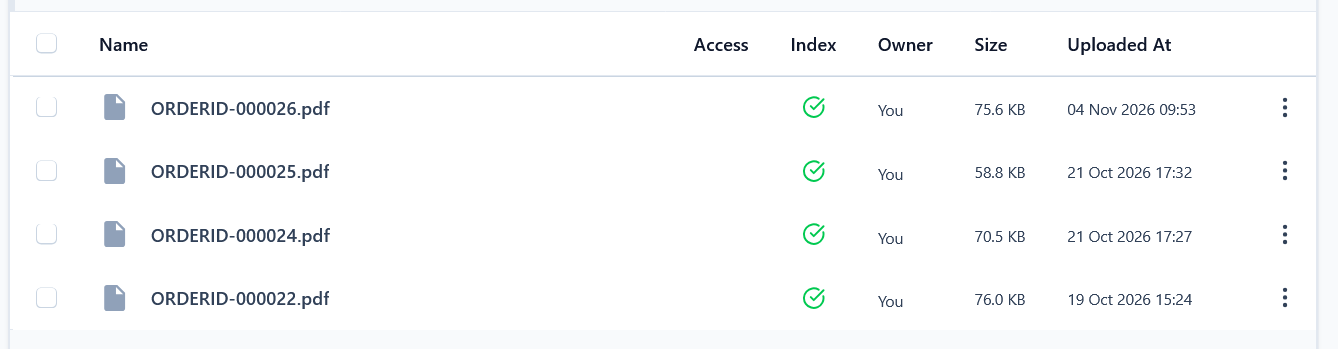
- Upload a file. Click HelloDocz on the top bar, then drag a file into the file list, or click New → Upload File. Use a file PixelAI can index, e.g. a PDF, Word document, spreadsheet or image.
- Wait for it to be indexed. Watch the Index column. A spinner means PixelAI is reading the file. A green tick means it's ready.
- Start a chat. Click AI Chat on the top bar, then click + next to My Chats.
- Add your file. Click Find File, pick the file, and click Select Files.
- Start chatting. Type a question and press Enter, e.g. "What is the total amount and when is it due?" You can also click one of the suggested questions above the message box.
You can skip steps 1 and 2. In step 4, click Upload File instead to upload straight into the chat. The file is saved to HelloDocz too, in your Chat Assistant folder.
Each answer uses AI tokens from your organization's allowance. The free trial includes plenty for trying things out: see What the free trial includes.
Next steps
- Extract data from the same file into fields and tables you can export to Excel.
- Invite your team under Organization and members.