

Appearance
File details, tags and fields
Last updated 23 Nov 2026
- Who can do this: Anyone in the workspace. Changing tags and fields needs edit access to the file
- Where: A file's ⓘ icon, or its page
The details panel shows everything about a file in one place, and lets you label it with tags and fields so it's easier to find later.
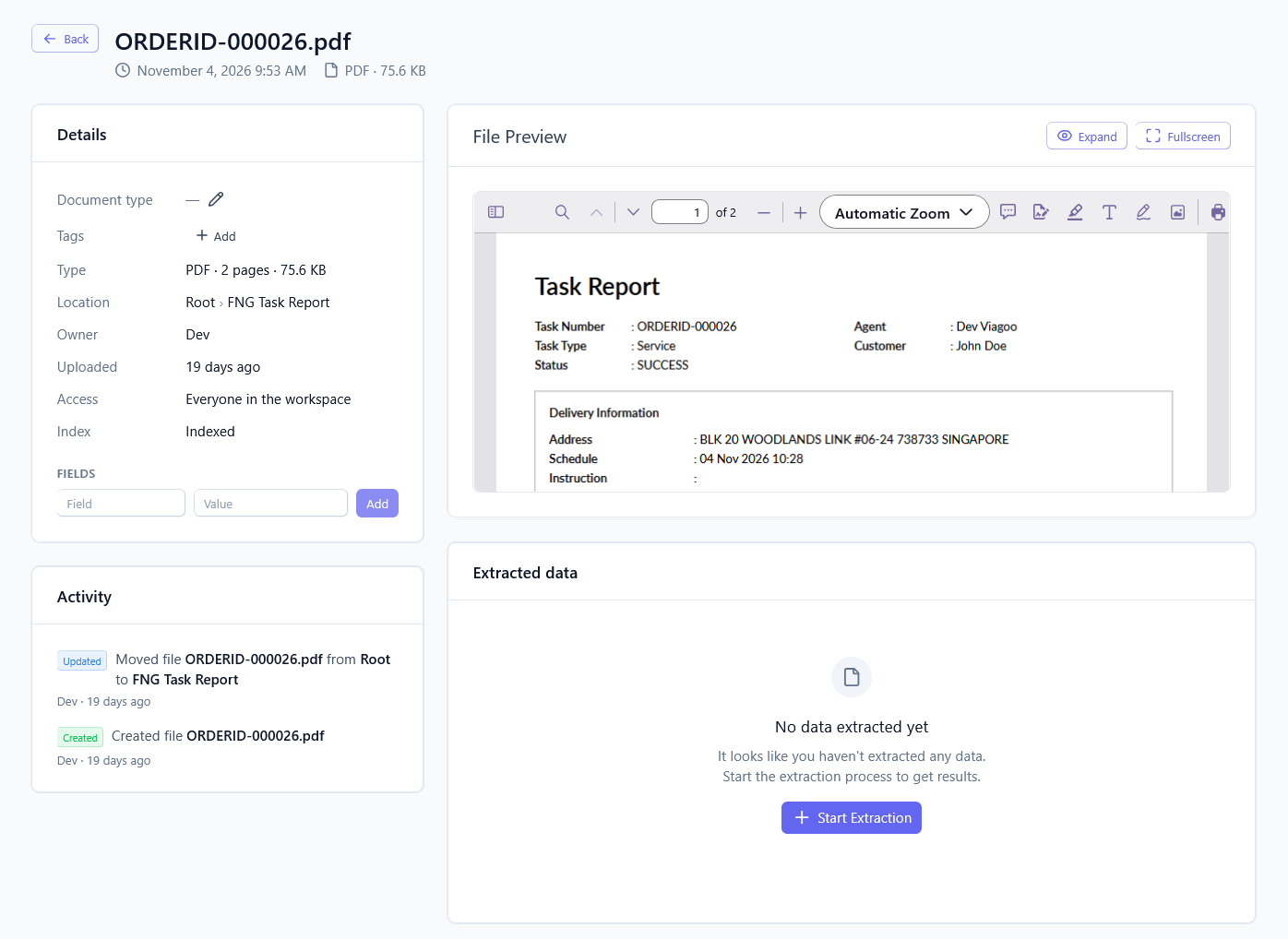
What the panel shows
The panel has three tabs:
- Details: the document type, tags, location, owner, upload date, who can see it (Access), whether it's indexed, its fields and its AI summary.
- Preview: the file itself, for PDFs and images. Click Open in new tab to see it larger.
- Activity: who created or changed it and when, and what changed, e.g. its name or folder.
Tags
Tags are coloured labels you put on files and folders to group them by something other than their folder. A file stays in one folder, but it can have as many tags as you like, and everyone in the workspace sees them.
For example, a finance team keeps invoices in a folder per supplier, and uses tags for where each invoice is up to:
| Tag | Put it on |
|---|---|
| ● To review | New invoices nobody has checked yet |
| ● Awaiting payment | Invoices that are approved but not paid |
| ● Paid | Invoices that are settled |
| ● Q4 Audit | Anything the auditors need to see, from any folder |
Click Q4 Audit in the sidebar, and every invoice, receipt and contract with that tag is listed together, wherever it's stored.
- To add a tag, click Add next to Tags and pick one.
- To remove a tag, click the × on it.
- To see everything with a tag, click it in the HelloDocz sidebar. To combine tags, e.g. Q4 Audit and Paid, use Filters next to the search box. Results must have every tag you choose.
Creating tags: the workspace owner creates the tags and chooses their colours. Click Manage tags in the tag list, then New tag, enter a Name, pick a Color and click Create. Deleting a tag removes it from every file and folder.
Tags or fields? Use a tag for a short list of labels you reuse a lot, like a status. Use a field when each file has its own value, like a client name or project code.
Fields
Fields are your own notes as a name and value, e.g. Client: Acme or Project code: PX-42. They're for information that isn't in the file, or that you want to find files by.
For example, the same finance team adds these fields to each invoice:
| Field | Value |
|---|---|
| Supplier | Acme Supplies |
| Cost centre | Marketing |
| Approved by | Jane Tan |
| PO number | PO-2026-118 |
To find every invoice for the Marketing cost centre, search for "cost centre":marketing, or click Marketing on any file that has it.
To add a field:
- Type a key name in Field. Some attributes will be autosuggested ff the file has a document type.
- Type the Value and click Add.
Document type
The document type says what kind of document this is, e.g. Invoice. To change it, open the file's page and click the pencil next to Document type. Changing it needs the Document classification feature.
AI summary
If the workspace has Generate File Summaries turned on, PixelAI writes a short summary of each file when it's indexed. It's shown in the details and on the file's page. You can also choose View summary from a file's menu.