

Appearance
Extract data
Last updated 23 Nov 2026
- Who can do this: Anyone with edit access to the file
- Feature needed: Document extraction
- Where: A file's page → Extracted data
Extraction reads a document, e.g. an invoice, receipt or purchase order, and pulls its data into tables you can check, correct and export. It works best on PDFs and images of business documents, and the file doesn't need to be indexed first.
How to extract file
- In HelloDocz, click the file to open its page.
- Under Extracted data, click Start Extraction.
- Wait for the status to change from QUEUED to PROCESSING to COMPLETED. You can leave the page: you get a notification when it's done.
- The results appear under Extracted data.
If the status shows FAILED, click it to see the log, then click Re-extract.
Extract results
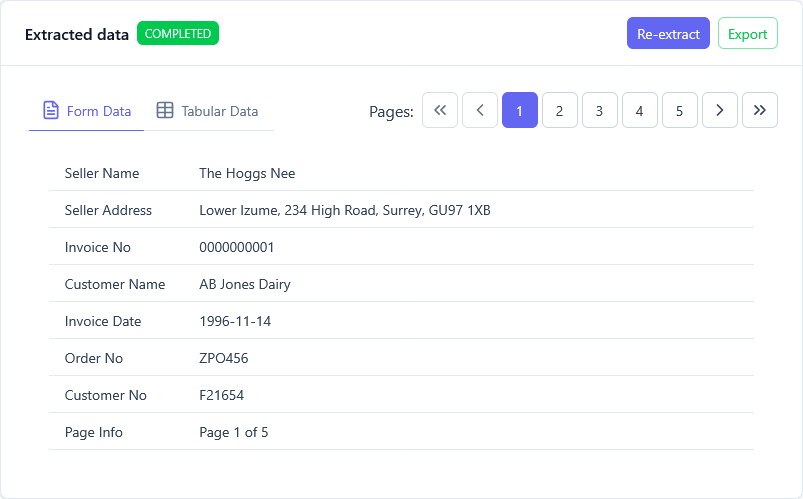
- Form Data: values found once in the document, e.g. Invoice Number, Invoice Date, Total. Values that don't fit a standard field are under Additional Information.
- Tabular Data: tables in the document, e.g. line items with description, quantity and price.
- Pages: for documents with several pages, switch between each page's results.
Click a value to correct it, then click Save.
Good to know
- Re-extract replaces the results, including your corrections. Export them first if you want to keep them.
- Extraction counts towards your plan's extraction allowance, usually per page: a 10-page PDF uses 10 pages. Some plans count per file instead. Re-extracting counts again. See Billing and usage.
- Without edit access, the results are read-only. This applies to members with only View permission on a private file, and to Shared files. To extract a shared file yourself, import a copy.