

Appearance
SharePoint and OneDrive
Last updated 23 Nov 2026
- Who can do this: Anyone in the workspace
- Feature needed: Upload files, to import
- Where: Connect to Sharepoint in HelloDocz
Connect your Microsoft account to bring files from SharePoint or OneDrive into HelloDocz, or to save HelloDocz files to SharePoint.
Your company's Microsoft 365 admin may need to approve PixelAI first. Many companies only let an admin allow new apps to access SharePoint and OneDrive. If you see Need admin approval when you sign in, ask your IT admin to approve PixelAI for your organization. They only need to do it once, and then everyone in your company can connect.
Connect your Microsoft account
- In HelloDocz, click Connect to Sharepoint.
- Sign in with your Microsoft work or school account. Personal Microsoft accounts (e.g. Outlook.com) can't connect.
- Accept the permissions it asks for.
- You're back in PixelAI, and the button now says Sharepoint Connected.
The connection is just for you. Others in the workspace connect their own accounts. You only see the SharePoint sites and files your Microsoft account can already open.
Import files from SharePoint or OneDrive
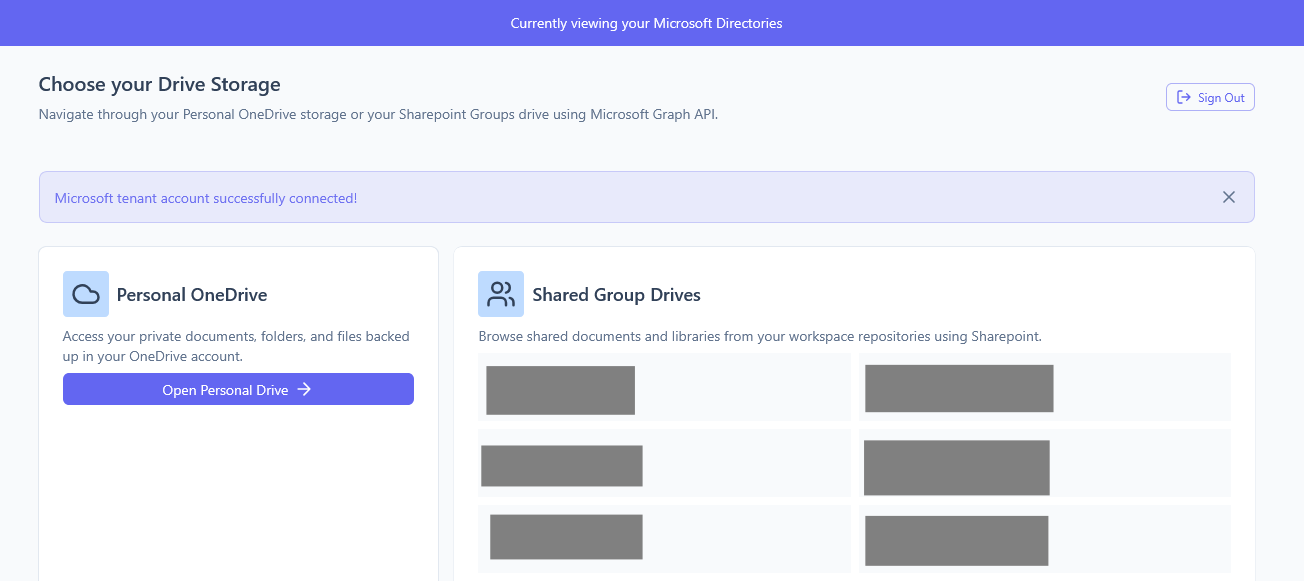
- Click Sharepoint Connected.
- Choose Personal OneDrive for your own files, or Shared Group Drives for your team's SharePoint sites.
- Browse to the files. Tick the ones you want and click Import File(s), or use a file's menu → Import file.
- Choose the HelloDocz folder to put them in.
A progress card shows the import, and you can cancel it. The files are copies: changes in SharePoint don't update them, and the other way round. They're indexed like any other upload.
From a file's menu, you can also View via Sharepoint or Download file without importing it.
Disconnect
Click Sharepoint Connected, then Sign Out and Disconnect. You'll need to sign in again next time.