
Appearance
Index files
Last updated 23 Nov 2026
- Who can do this: Anyone in the workspace. The workspace owner changes the settings
- Feature needed: OCR indexing, to read scanned files
- Where: The Index column in HelloDocz
Indexing is PixelAI reading a file's text. Once a file is indexed, you can search for what's written in it and use it in AI Chat.
Index status
The Index column in the file list shows where each file is:
| Icon | What it means |
|---|---|
| Spinner | PixelAI is reading the file. Large or scanned files take longer |
| Green tick | Indexed. You can search it and use it in AI Chat |
| Red cross | Indexing failed. Hover over it to see why, then choose Re-index from the file's menu |
| Search button | Not indexed yet. Click it to index the file |
| Blank | This kind of file can't be indexed |
When indexing finishes or fails, you also get a notification under the bell icon.
Which files can be indexed
- PDF and Word documents (
.pdf,.doc,.docx) - Spreadsheets (
.xlsx,.csv) - Images (
.jpg,.png,.tiff) - Text files (
.txt,.json)
Very large files can't be indexed. You can still store, share and download them.
OCR indexing
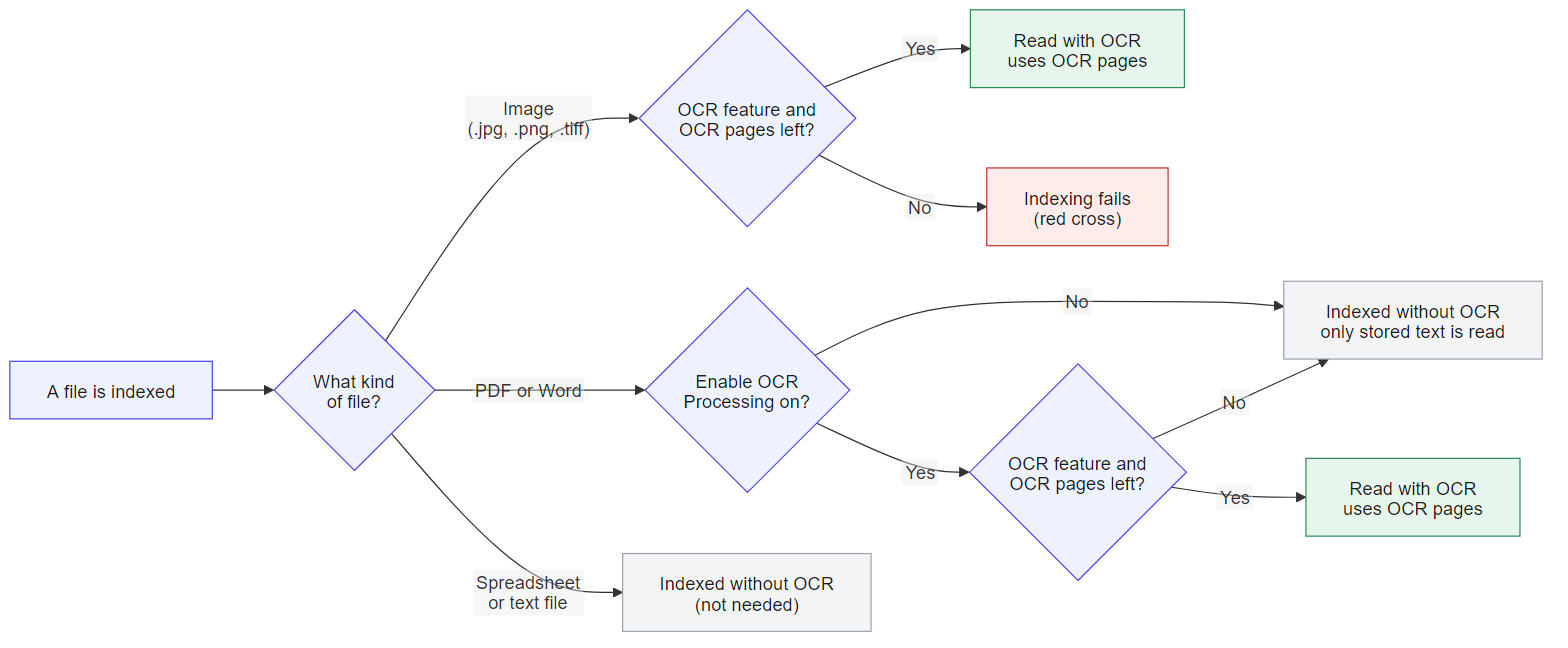
OCR (optical character recognition) reads text from pictures of text, such as scanned documents and photos of receipts. Without it, PixelAI only reads text that's stored in the file, so a scanned PDF comes out empty and can't be searched or used in AI Chat.
| File | When OCR is used |
|---|---|
Images (.jpg, .png, .tiff) | Always. An image has no other text to read |
| PDF and Word documents | Only when the workspace owner turns on Enable OCR Processing |
| Spreadsheets and text files | Never. They don't need it |
What it needs:
- The OCR indexing feature for the member who indexes the file. See Workspaces and feature access.
- OCR pages left in your organization's allowance.
If either is missing, PDF and Word files are indexed without OCR, so only their stored text is read. Images can't be indexed at all, and show a red cross.
Every page of a file indexed with OCR counts towards your OCR page allowance, including pages that already had text. A 10-page PDF uses 10 pages. Turn on Enable OCR Processing only if your workspace gets scanned PDFs. See Billing and usage.
Already uploaded a scan before turning OCR on? Choose Re-index from the file's menu to read it again with OCR.
Workspace settings
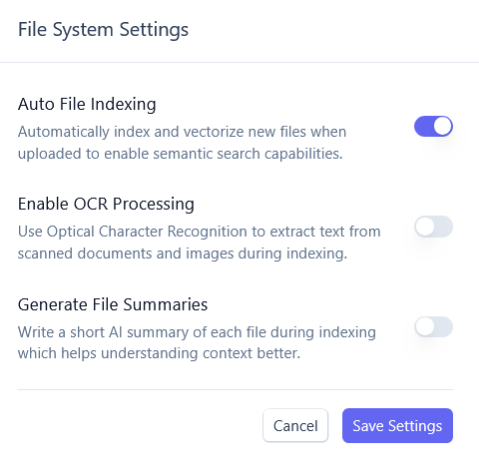
The workspace owner chooses how new files are indexed. In HelloDocz, click Settings (top right of the page):
| Setting | What it does |
|---|---|
| Auto File Indexing | Indexes every new file as soon as it's uploaded. If it's off, members index files themselves |
| Enable OCR Processing | Uses OCR for PDF and Word files |
| Generate File Summaries | Writes a short AI summary of each file while indexing it. Uses AI tokens |