

Appearance
Share files and folders
Last updated 23 Nov 2026
- Who can do this: The file or folder's owner (the person who uploaded or created it)
- Feature needed: Upload files, to import shared files
- Where: A file or folder's menu → Share
By default, everything in a workspace is visible to everyone in it. Sharing lets you make an item private to chosen workspace members, or show it in other workspaces of the same organization.
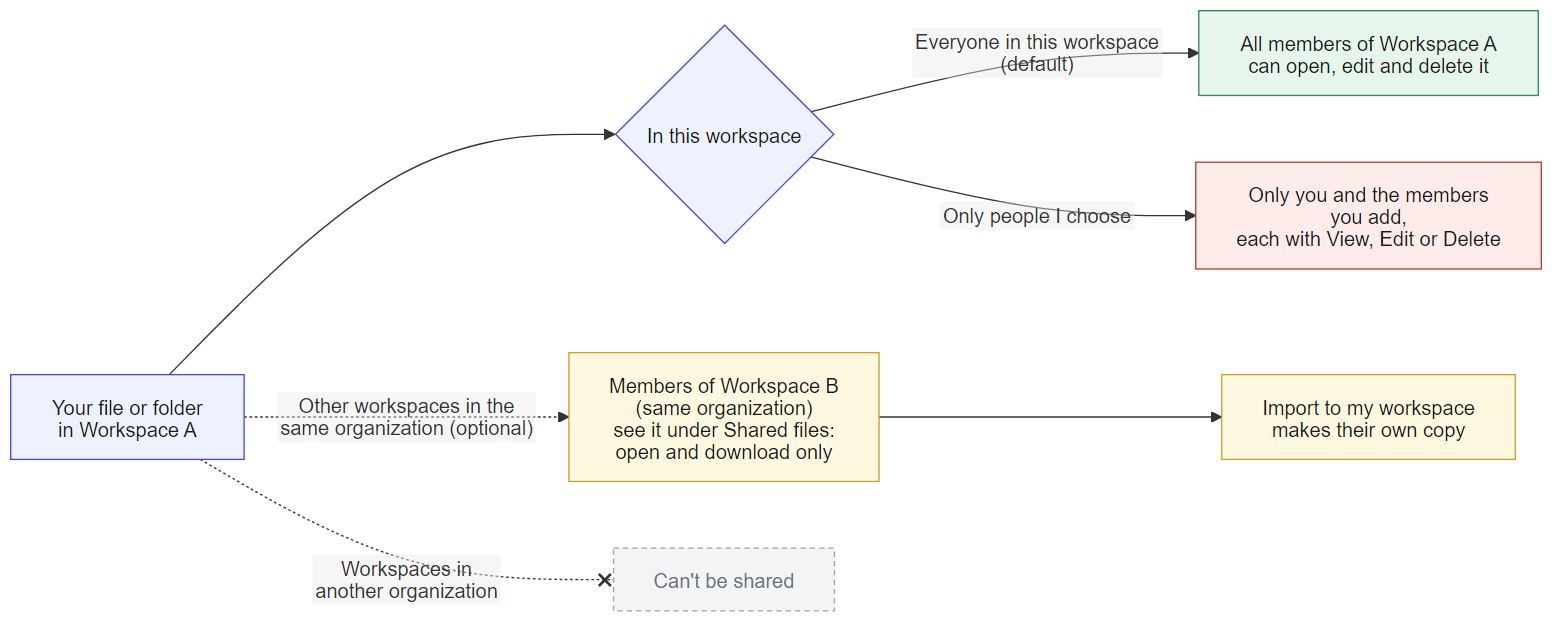
Who can see it in this workspace
In the Share dialog, under In this workspace, choose:
- Everyone in this workspace: everyone in the workspace can open, edit and delete it. This is the default.
- Only people I choose: only you and the workspace members you add can see it.
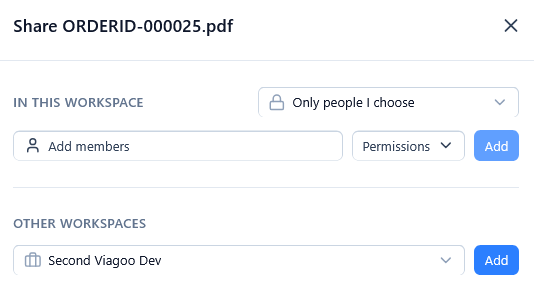
Share item to members
Choose Only people I choose.
Click Add members and pick members of this workspace.
Click Permissions and choose what they can do:
Permission What they can do View Open and download it, and see its extracted data Edit Rename and move it, add tags and fields, extract data and change the extracted data Delete Delete it Click Add.
How folders pass this on
- A private folder makes everything in it private, including subfolders, even if they're set to Everyone in this workspace.
- Members you share a folder with get the same permissions on everything inside it.
The Access column in the file list shows Private, Shared (private, with members added) or External (shared with another workspace) on your own items.
Share with your other workspaces
Under Other workspaces, pick one of your other workspaces in the same organization and click Add. Everyone in that workspace can then find it under Shared files, open it and download it.
You can only share with workspaces in the file's own organization. Workspaces in other organizations aren't listed, even ones you belong to.
Files shared with your workspace
Shared files in the HelloDocz sidebar lists what other workspaces have shared with the one you're in. They're read-only.
To work with a shared file in your own workspace, e.g. extract its data or rename it, import a copy:
- Tick the files and folders, or open a row's menu, and choose Import to my workspace.
- Choose the folder to put them in.
The copy is yours and separate from the original: changes to one don't affect the other. It comes already indexed, so you can search it and use it in AI Chat straight away. Extracted data isn't copied. It counts towards your storage.
Good to know
When someone leaves the organization, everything they shared with other workspaces stops being shared.