

Appearance
Upload, organize and find files
Last updated 23 Nov 2026
- Who can do this: Anyone in the workspace
- Feature needed: Upload files, to upload
- Where: HelloDocz
HelloDocz is the workspace's file library. Everyone in the workspace sees the same folders, except files and folders that have been made private.
Find your way around
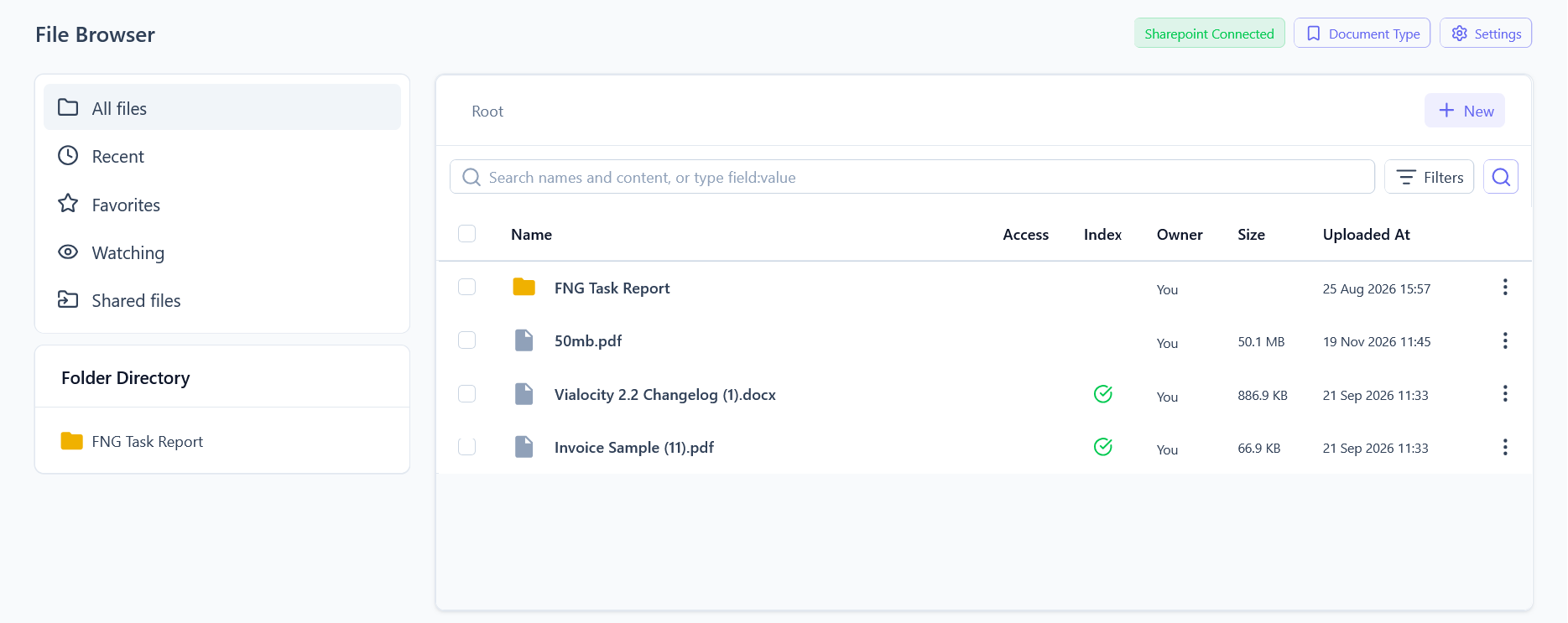
- Top right: Connect to Sharepoint and Document Type. The workspace owner also sees Settings.
- File list: the folder you have open, with the search bar above it.
Left sidebar:
| Place | What's in it |
|---|---|
| All files | The workspace's folders. The Folder Directory below it shows them as a tree |
| Recent | Files uploaded to the workspace recently, newest first |
| Favorites | Files and folders you starred with Add to favorites. Only you see your favorites |
| Watching | Folders you watch, so you're notified when files are added or removed |
| Shared files | Files and folders shared with this workspace from your other workspaces |
| Tags | Click a tag to see everything with it |
On a small screen, the sidebar is under Browse.
Upload files
- Open the folder you want to upload to.
- Drag files from your computer onto the file list, or click New → Upload File.
- To upload straight into a subfolder, drop the files onto that folder's row.
Keep the page open until the uploads finish.
Zip files
When you upload a zip file, PixelAI asks what to do with it:
- Extract files uploads each file inside it separately. Folders inside the zip aren't kept.
- Upload as zip keeps it as one zip file.
What you can't upload
- Files over the size limit. The limit depends on your plan and is shown next to Upload File.
- Files that would put your organization over its storage limit. See Billing and usage.
- Programs and files that can run code, e.g.
.exe,.msi,.bat,.js,.jarand.apkfiles, web pages (.html), disk images (.iso) and macro-enabled Office files (.docm,.xlsm). Save Office files in the normal format (.docx,.xlsx) instead. - PDFs with active content, such as embedded scripts or launch actions.
Search
Type in the search box above the file list and press Enter. PixelAI searches:
- File and folder names.
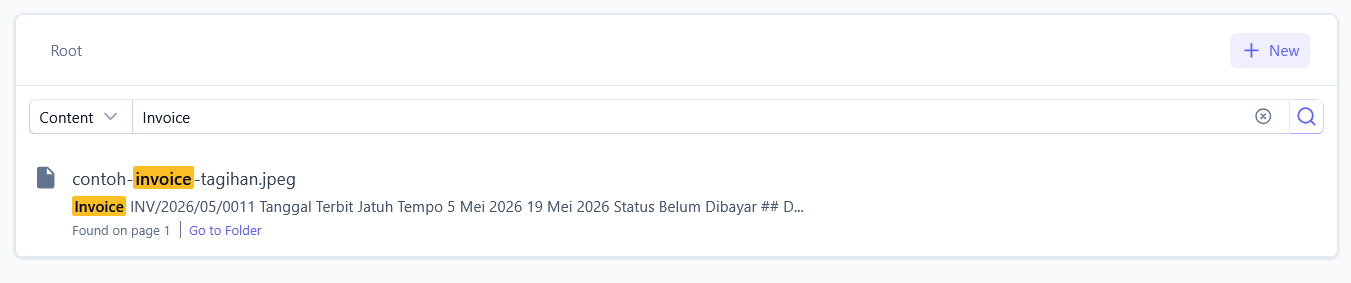
- What's written inside files, for files that are indexed. For example, search an invoice number to find the invoice.
- Fields you added to files.
Each result shows where the match was found: Content, Field or Extracted, with the matching words highlighted. You only see results you're allowed to open.
A file only turns up by its content once it's indexed. If you can't find it, check its Index column.
Filter by tags and fields
Click Filters next to the search box, choose Field or Tag, then fill it in and click Add filter. You can add several. Results must match all of them.
You can also type a field filter straight into the search box as name:value, e.g. client:acme. Use quotes if there's a space: "project code":"PX 42".
Field filters find values that contain what you type, so
client:acalso finds Acme. Field names and values aren't case-sensitive.
Work with a file
Click a file to open its page. Right-click its row, or click ⋮, for more options, including:
| Action | What it does |
|---|---|
| Details | Shows its details in a side panel. Also the ⓘ button on the row |
| Share | Chooses who can see it. See Share files and folders |
| Folder settings | Folders only. See Folder settings |
| Index file / Re-index | Reads its text for search and AI Chat. See Index files |
| View summary | Shows its AI summary |
| Send Email | See Send files by email |
| Upload to Sharepoint | See SharePoint and OneDrive |
Deleting a folder deletes everything inside it. There's no recycle bin, so it can't be undone.