
Appearance
Organization and members
Last updated 23 Nov 2026
- Who can do this: The organization's owner
- Where: Settings → Organizations, Members
Your organization holds your workspaces, the people you invite and your subscription. Everyone in it shares the same plan and usage allowance.
Members and guests
You invite people as a member or a guest. Both work the same way inside a workspace: you give them a role (Admin or Staff) and the features they can use. The difference is the seat and how long they stay.
| Member | Guest | |
|---|---|---|
| Good for | Your team | Trying PixelAI before you give them a seat |
| Takes a paid seat | Yes | No |
| Access lasts | As long as your subscription is active | A set number of days after accepting, shown on the Members page |
| Uses the organization's allowance | Yes | Yes |
| When access ends | — | They get a reminder 3 days before, and so do you. Afterwards they stay on the Members list, so you can still convert them |
You, as the owner, also take one seat.
Invite someone
- Go to Members and click Invite.
- Enter their Email.
- Under Invite as, choose Member or Guest. If all seats are taken, you can only invite guests until you buy more seats.
- Choose the Workspaces they join, and their Role in the workspaces. See workspace roles.
- Under Features, tick what they can use. Nothing is granted unless you tick it:
- AI chat: chat with documents.
- Document extraction: extract data from documents.
- Upload files: upload files, including SharePoint imports.
- Email files: send files by email.
- OCR indexing: read scanned files and images with OCR.
- Document classification: set a file's document type.
- API access: use the workspace through API tokens.
- Click Send invite.
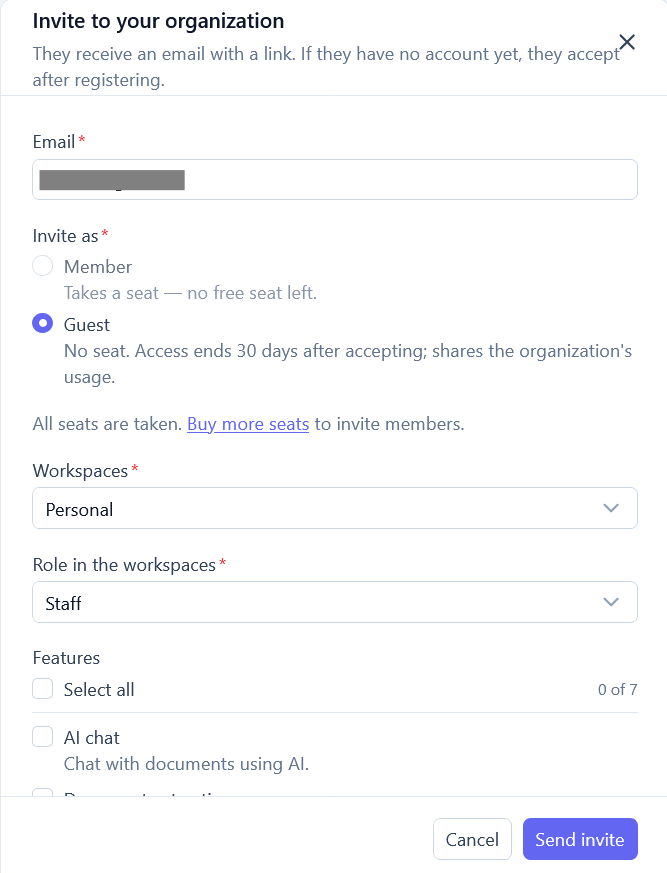
They get an email with a link to accept. If they don't have an account, they register first.
Invitations not yet accepted are under Pending invitations, where you can resend or cancel them. A pending member invitation holds a seat.
Change or remove member
Click ⋯ next to a person:
- Convert to member: a guest takes a seat and keeps access. If no seat is free, buy one first.
- Change to guest: a member frees their seat, and their guest days start counting.
- Remove from organization: they lose access to all your workspaces. Their files stay, but anything they shared with other workspaces stops being shared.
To change what someone can do in one workspace, use Workspaces.
Your organization's settings
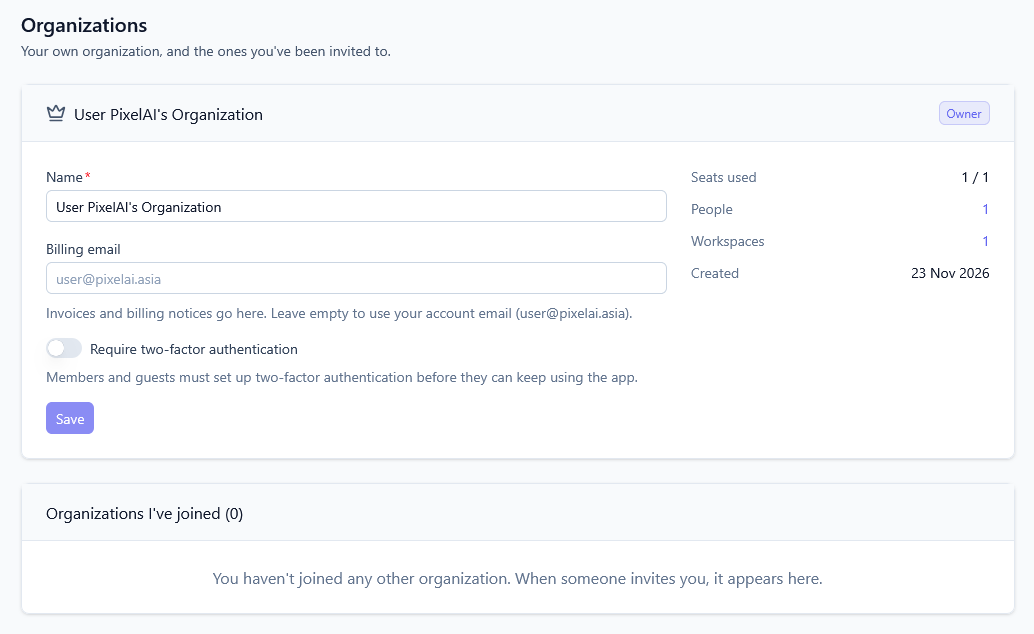
Under Organizations, the card at the top is your own organization:
- Name: shown to people you invite, and on your invoices.
- Billing email: where invoices go. Leave it empty to use your own email.
- Require two-factor authentication: everyone in your organization must set up two-factor authentication to keep using it. The shield icon on Members shows who has it on.