

Appearance
Workspaces and feature access
Last updated 23 Nov 2026
- Who can do this: Workspace owner and admins. Anyone can create a workspace
- Where: Settings → Workspaces
A workspace is an area inside your organization with its own files, chats, tags and document types, e.g. one for Finance and one for HR. Members only see the workspaces they're added to.
Create a workspace
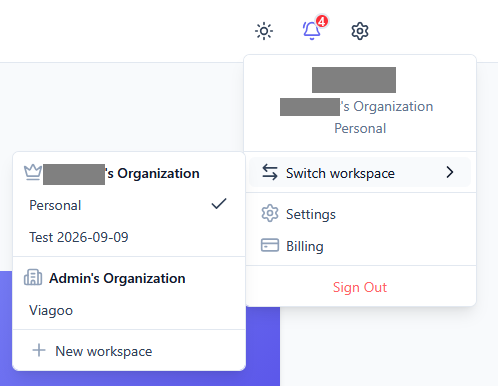
Go to Workspaces and click Create Workspace, or use Switch workspace → New workspace. Enter a name and click Save.
It's created in your own organization, with you as its Owner. Workspaces don't change what you pay.
Switch workspace
Click the Settings icon (top right) → Switch workspace. HelloDocz and AI Chat show the workspace you're in, and the Dashboard shows its name.
Manage members
Click View next to a workspace.
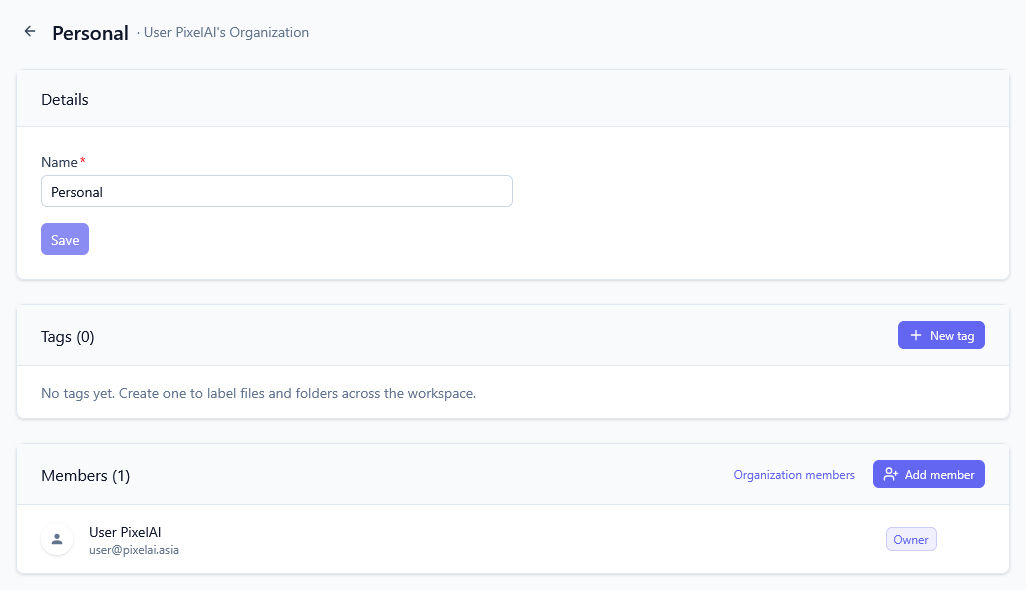
- Add a member: click Add member, choose people from your organization, their Role in this workspace and their Features, then click Add. They get access straight away. To add someone new to your organization, invite them first.
- Change or remove a member: click ⋯ next to them to change their Features or Role (Admin or Staff), or to Remove from workspace. Removing them doesn't remove them from your organization.
Choose what members can use
Each member can only use the features you turn on for them, in each workspace. A Limited badge means they don't have every feature.
| Feature | What it allows |
|---|---|
| AI chat | Chat with documents in AI Chat |
| Document extraction | Extract data from documents |
| Upload files | Upload files, including imports from SharePoint and Shared files |
| Email files | Send files by email |
| OCR indexing | Read scanned files and images with OCR |
| Document classification | Set a file's document type |
| API access | Use this workspace through API tokens |
Delete a workspace
The workspace owner can click Delete Workspace and enter their password. You can't delete your last workspace.
Deleting a workspace permanently deletes its files, chats, tags and document types. Download anything you want to keep first.